Dashboard Overview & Main Menu Guide
After you sign in to LockMyCal, you are welcomed by a clear control panel (the Dashboard) that serves as the central command centre for all your meetings, calendars and settings.
1. Overview and Calendar
Overview – "What's ahead"
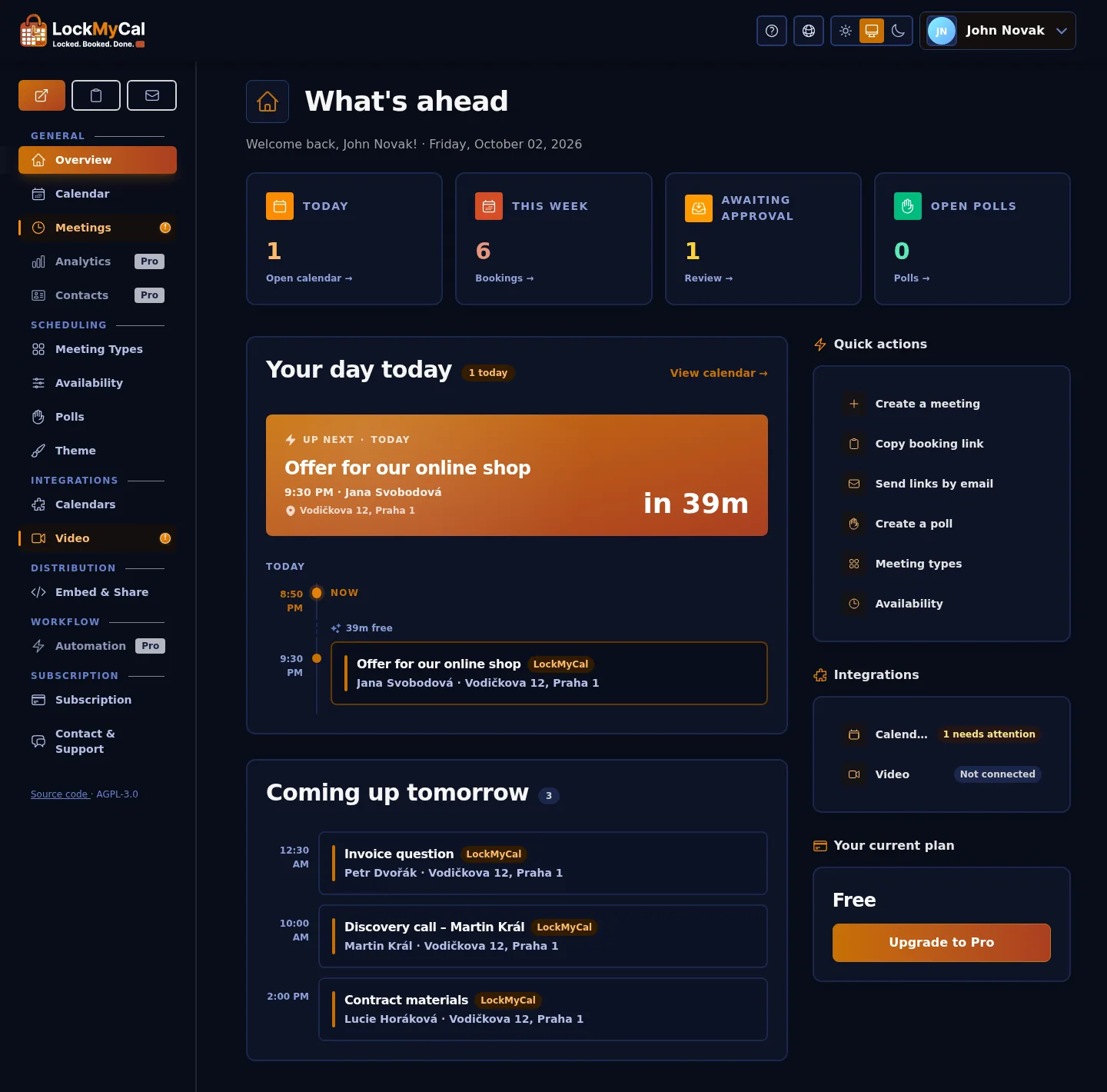
The Overview (in the menu Overview, headed What's ahead on the page) brings your day and the state of your whole account together in one place. Below a greeting with today's date you'll find:
- Four key figures – Today (meetings today), This week (bookings from Monday to Sunday), Awaiting approval (in orange when there are any) and Open polls. Click a tile to open the page behind it.
- Your day today – an Up next card with today's next meeting, a countdown and a Join button for video calls, below it a timeline of the day with the current time and the free stretches between meetings.
- Coming up tomorrow – every event of the next day. When tomorrow is free, you'll see your next appointment here with its date so it doesn't slip by.
- Quick actions – Create a meeting (opens the new-meeting form in the calendar), copy your booking page link, Send links by email, Create a poll, Meeting types and Availability.
- Integrations – how many calendars and video services you have connected, and a warning when a connection needs attention (e.g. signing in again).
- Last 7 days – booking page visits, bookings and conversion with a small chart; shown when Analytics is available to you.
- Your current plan – LockMyCal Cloud only: the Free or Pro plan, the end of the trial or the renewal date, and a button to upgrade or manage your subscription.
Every appointment on the Overview shows the name of the calendar it is stored in (e.g. Itopo; when one account has several calendars in use, e.g. Pavliks.eu - Tymeslot) and its colour – the same as in the calendar. Click an appointment to open it in the Calendar, on its day – in the details of the event or booking – and after closing it you return to the Overview. Booking requests awaiting your approval appear in the agenda in red with an Awaiting approval badge (they never appear as Up next). Bookings are titled by the Meeting Information field the guest filled in when booking; Settings → Meeting Titles switches this to the meeting type name.
Calendar
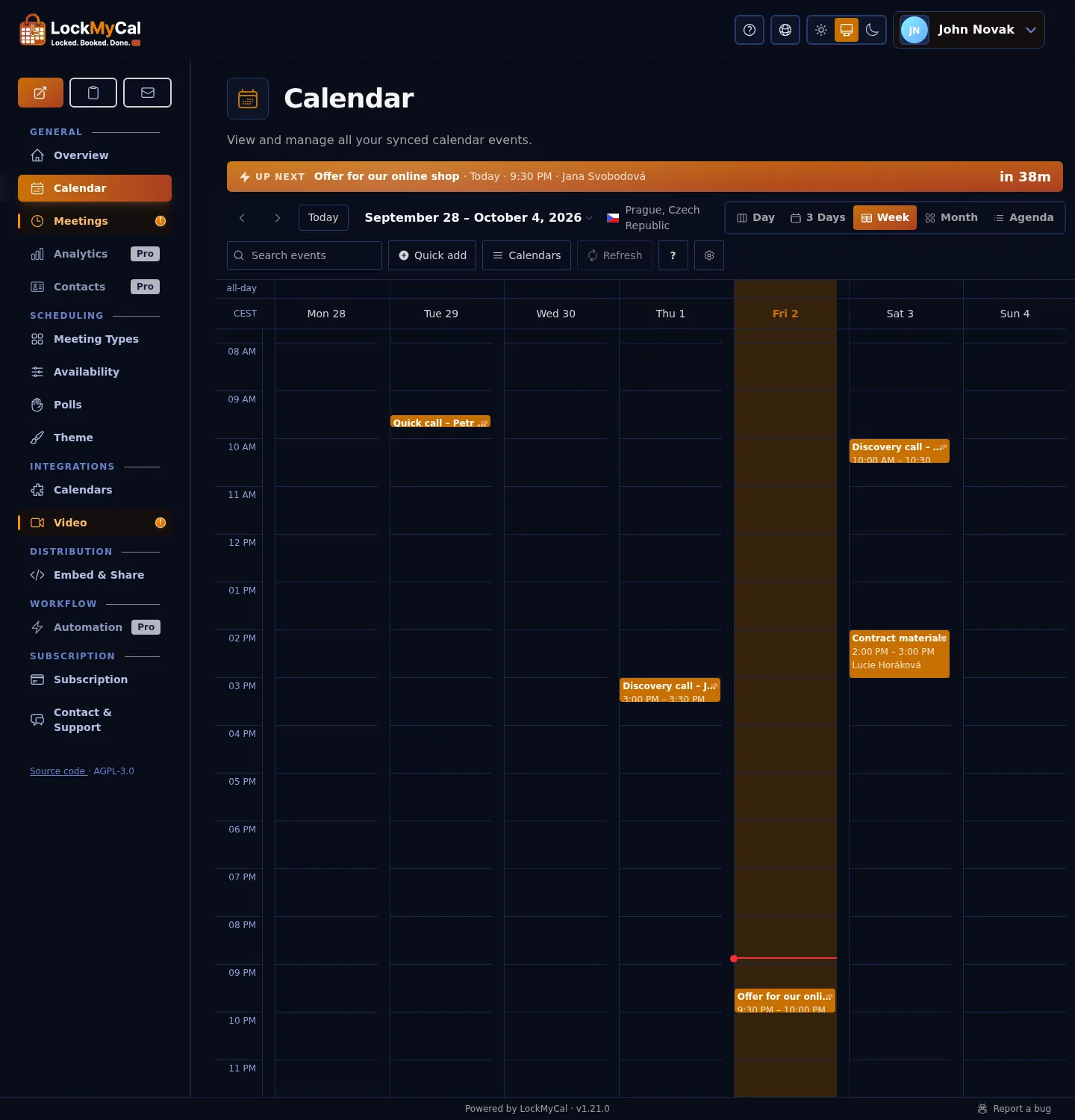
The Calendar is an interactive real-time calendar:
- Views: Day, Week, Month and Agenda. The current day is highlighted with a colour across the whole cell (in the month view) or the whole column (in the week and 3-day views).
- Colour coding: An event has the colour you chose for it; otherwise its calendar's colour, and if the calendar has none, the colour of the whole connected account. LockMyCal bookings are orange. You set an account's colour under Integrations → Calendars → Manage calendars; the My Calendars dropdown in the calendar only shows and hides calendars.
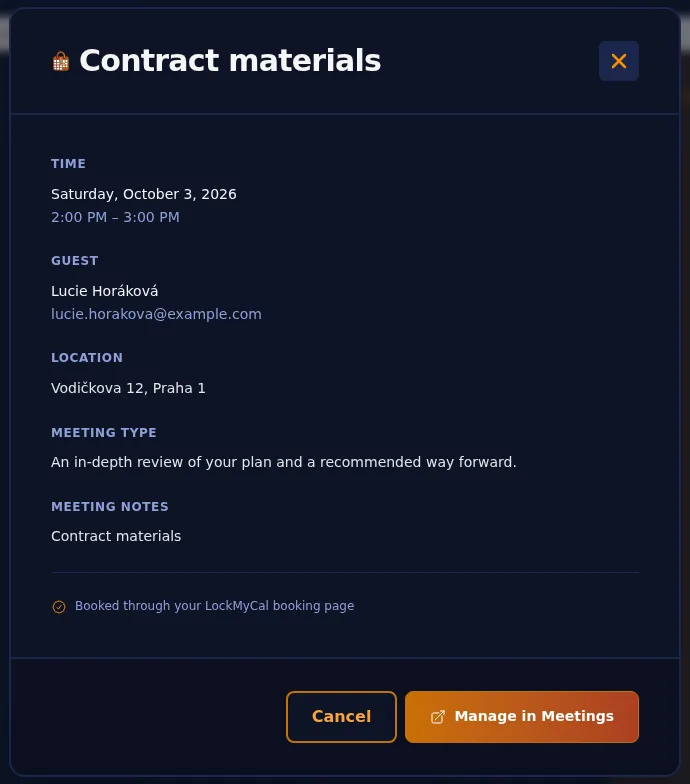
- Event details: Click to see attendees, form answers, the video conference link and the payment status.
- Quick add: Create a new meeting right in the calendar grid, with the Quick add button, with the
ckey, or from the Overview via Create a meeting. - Import from .ics: Add events from a calendar
.icsfile with the Import button in the calendar toolbar, or drop a file anywhere onto the calendar.
Recurring events
For an event that is part of a recurring series, the dialog asks what the change applies to: This event, This and following events or All events. Deleting works the same way (Delete this event / Delete all events).
- Splitting a series: changing the recurrence rule for “this and following” splits the series in two.
- Move series: you move the whole series to another calendar (CalDAV, Google, Outlook). The video meeting and the series' colours carry over.
- For a booking, the attendee gets an email about the time change or the cancellation.
- A meeting organised by someone else, which you were only invited to, can't be moved or split. If the calendar provider doesn't allow a change, the application says so, and you make the change directly in the calendar app.
Event dialog
A new event, a meeting with a guest, and the details of an existing event or booking all open in the same dialog:
- The title is edited in the dialog header behind a pencil icon and is required – an event or meeting can't be saved without a title; the dialog says so and stays open.
- Under the title are the Event and Meeting tabs.
- Start and end are separate date and time fields.
- You pick the Calendar and the Video from a dropdown; calendars are grouped by account and the account's colour is shown in the field.
- Repeat and Reminder sit side by side. You add a reminder with the + button from a list of lead times, and it is always a notification.
- A meeting with a guest has the primary button Send invitation.
- In an event's details, repeat and reminders are shown as text. The Cancel button closes the dialog in every variant of the details.
- An event in a read-only calendar (a subscribed feed, a shared calendar) has a Calendar is read-only badge under its title and can't be changed in LockMyCal.
2. Navigation Sections of the Application
The left sidebar is divided into sections:
| Section | Items |
|---|---|
| General | Overview, Calendar, Meetings, Analytics (Pro), Contacts (Pro) |
| Planning | Meeting Types, Availability, Polls, Theme |
| Integrations | Calendars, Video, Payments |
| Distribution | Embed & Share |
| Automation | Automation (Pro) – webhooks, Slack, Telegram |
| Administration | App Settings, Users, Audit Log (administrators only) |
In LockMyCal Cloud you will also find Subscription and Contact & Support. You open your own profile settings through My Profile in the menu under your avatar.
At the end of the sidebar is a Source code · AGPL-3.0 link to the repository of the version that is running. On your own instance, you set it with the SOURCE_CODE_URL variable (see Environment Variables).
Top bar
- Light / System / Dark: a three-way appearance switch; the saved choice is highlighted. It works on all dashboard pages.
- The question-mark icon opens the documentation and the globe icon opens the public website, both in a new window. They are hidden on phones.
The dashboard footer shows “Powered by LockMyCal · vWEB_HOST is set).
3. Quick Sharing of Booking Links
At the top of the sidebar are the buttons for your booking page:
- Open the booking page in a new window.
- Copy link (e.g.
https://lockmycal.app/jan-novak). - Send links by email – the booking page, the public calendar or selected meeting types to chosen recipients, with your own message.
Prefilled link: A link to the booking page can carry the guest's name and email, like https://lockmycal.app/jan-novak#name=Ada%20Lovelace&email=ada%40example.com; the booking form then opens with the name and email already filled in (e.g. from a newsletter or a CRM). The values sit after the #, so they are not sent to the server or logged, and they are removed from the address bar after loading. The name may have at most 100 and the email 254 characters.
Copying the link and sending it by email are also in the Quick actions on the Overview.
You set a temporary pause of bookings (holiday, illness) as time off in the Availability section.