Meeting Types & Booking Limits
In the Meeting Types section you define the individual services and consultations you offer your clients. Each meeting type has its own settings for duration, location, breaks and availability rules.
1. Basic Meeting Settings
- Title: Shown to clients in the offer (e.g. Introductory consultation 30 min).
- Description: Details and instructions for the client before the meeting.
- Duration: The length in minutes (e.g. 15, 30, 45, 60, 90 minutes); a meeting type can last up to 24 hours.
- Custom URL slug: A unique link to the specific meeting (
https://calendar.yourdomain.com/your-name/consultation).Note
[PRO in Cloud]: In LockMyCal Cloud, defining your own custom slug is part of the Pro plan. On the Free plan the slug is derived automatically from the title.
- Icon: A visual distinction of the meeting type (e.g. in-person or online).
- Hidden meeting (Hidden / Private): When switched on, the meeting is not shown on your main public page and is accessible only to those you send the direct link to.
- Show in embedded widget: When switched on, the meeting is listed in the booking widget embedded on your website, independently of the public page. A type can therefore be in the widget only, on the public page only, in both places, or on its direct link only (Embedding on Your Website).
Meeting Type Card
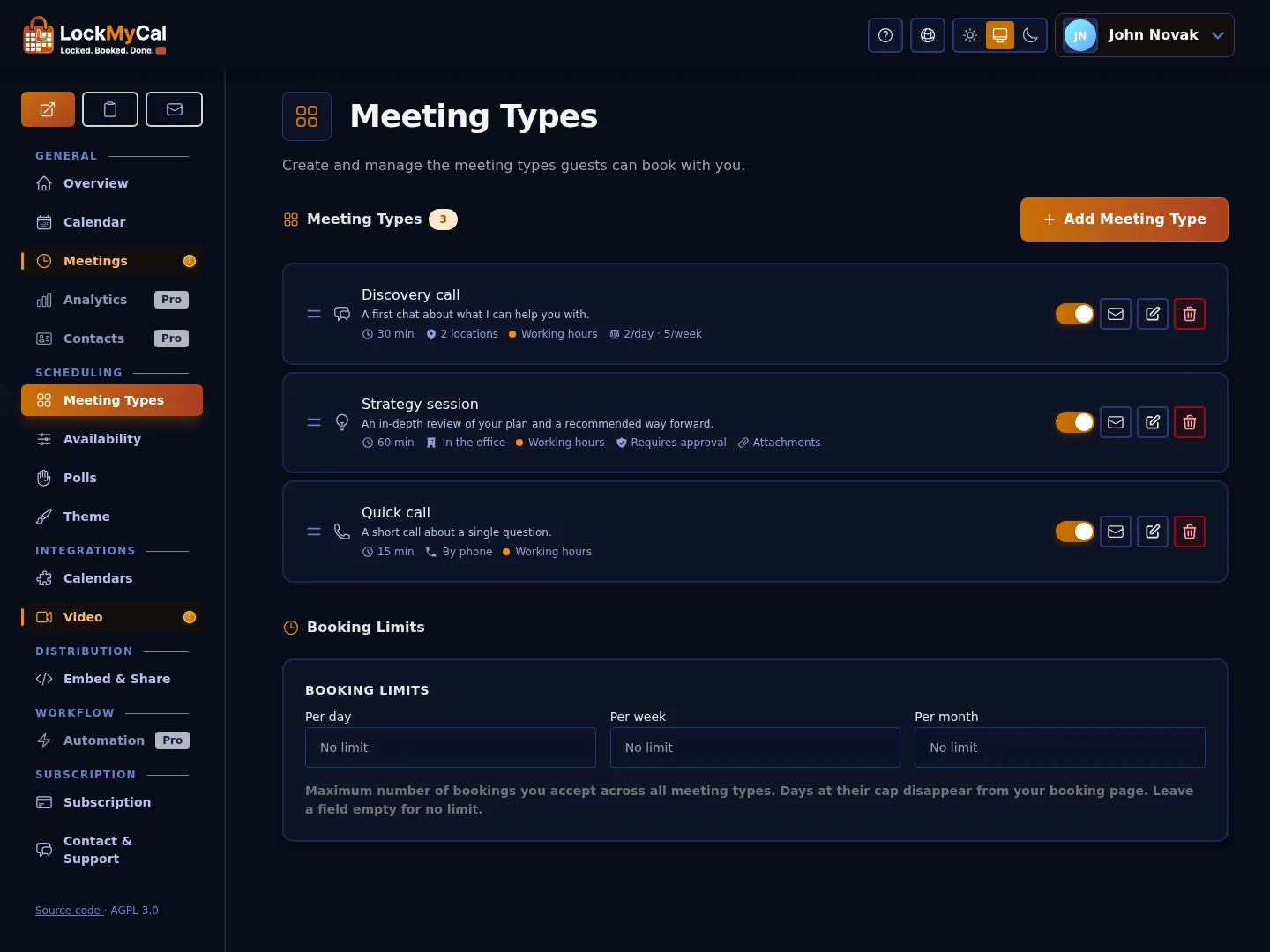
Each meeting type is a card in the Meeting Types section that shows at a glance:
- the availability schedule (with its colour; for a type that follows the default schedule, the default one),
- the booking limits per day, week or month (e.g. "2/day · 5/week") – only when set,
- the Requires approval badge and the Attachments badge (only when the form actually offers attachments),
- for a group type the Group · up to N badge (or Paused when the plan no longer includes group bookings).
A newly created account has a default schedule Working hours and the meeting types 15 Minutes and 30 Minutes named in the user's language; existing names are not changed and can be renamed.
A new meeting type is created in the same tabbed form as editing: it opens on Details, and the other tabs are disabled until the type exists. After Create Meeting Type the form switches to editing with auto-save and you set up the other tabs there; Done returns you to the list.
2. Meeting Location (Location)
For each meeting type you offer one or several locations at once – the guest then picks the one that suits them when booking.
| Type | How it works |
|---|---|
| Video | A room is created automatically for every meeting with the chosen service: Google Meet, Microsoft Teams, Zoom, Jitsi Meet, kMeet, Nextcloud Talk, MiroTalk, or a custom link is used. |
| In-Person | You pick one or more saved locations from the Locations page (you can also create an address right in the meeting type). The address is carried over to the invitation, the emails and the calendar event and stays with the meeting when it is rescheduled. |
| Phone | Either you publish a number the guest calls, or the guest enters their number and you call. |
| Custom | A custom description of the place that is shown to the guest. |
Saved Locations
The Locations page in the dashboard menu holds your meeting places: you can add, edit, delete and reorder them by dragging. Each place shows how many meeting types offer it; before you delete a place that a meeting type uses, the application warns you. The guest picks one of several places when booking; a type with no place tells the guest that you will specify the address after the booking, and the emails say so too. When a meeting is rescheduled it keeps its place, or the guest picks another of the offered ones. Addresses you had entered earlier for in-person meetings were converted to saved locations automatically on upgrade.
3. Spacing of Offered Times
Set how far apart the meeting start times are offered (e.g. every 15 minutes), independently of the meeting length.
The buffers before and after a meeting, the minimum notice and the booking horizon are not set on the meeting type but in the availability schedule – see Working Hours, Schedules & Exceptions.
4. Booking Limits
To prevent clients from filling your whole day with one type of demanding meeting:
- Max bookings per day: Limits the number of meetings of the given type to the set limit (e.g. at most 3 strategic consultations a day). Once the limit is reached the day is closed, even if the calendar has more free time.
- Max bookings per week / month: Sets a weekly or monthly cap for the given service.
The same limits can also be set for the whole profile – they then apply collectively to all meeting types.
5. Group Bookings (Webinars, Workshops)
A meeting type can take several participants per slot. You turn it on in Meeting type → Booking Rules → Group bookings by setting a participant limit (up to 999 per slot).
- Each participant gets their own seat, a link to manage it, emails and a calendar file.
- A full slot disappears from the booking page; a seat can be moved.
- Who can book → Invitation only: you enter a list of email addresses and only an invited person can book a seat, and only for themselves (no guests). The booking page marks the type as "Invitation only". Changes apply to new bookings only.
- A group type needs one location fixed in advance and cannot be combined with payment or approval; the form tells you what to change.
- The Meetings page shows the seats taken and the participants; cancelling the meeting or requesting a reschedule names them. In the calendar a group meeting is locked (no move, delete, or change of its time, repeat or attendees); changes are made from the meeting.
Note
[PRO in Cloud]: In LockMyCal Cloud, group bookings are part of the Pro plan. When Pro ends, group types are paused: they disappear from the booking page and take no new participants, while existing bookings stay. When self-hosting there is no limit.
6. Other Settings
- Booking approval: The option I confirm every booking myself – a booking is confirmed only after your approval, with a configurable time to decide.
- Target calendar: Which connected calendar confirmed bookings are written to (by default your default calendar, see Calendar Sync).
- Your contact details: Two switches in Booking Rules, off by default. They decide whether a signed-in booker sees your email and phone (from your profile) on their copy of the meeting, in their calendar and on their dashboard; otherwise they see only your name. Each booking keeps the choice it was made under.
- Reminders: Email reminders before the meeting.
- Guests: The booker can invite additional attendees.
- Show as free: A booking of this type does not block time in the calendar.
- Price: A paid meeting via Stripe (Pro plan in the cloud).
- Availability schedule: Which schedule the meeting type uses; without a choice the default schedule applies.
- Attachments: The Let invitees attach files to their booking switch in the Attachments section of the form. The booker can then attach files (e.g. materials for the meeting) to the booking on the booking page. As the host you only switch attachments on and off; the allowed types, file size and number of files are set by the instance administrator (Admin Console), and after switching on you can see them next to the switch. If the administrator has switched attachments off for the installation, the switch is locked. The files are private: you download them from the booking on your dashboard (Managing Bookings).
- Translations: You can translate the meeting type's title and description into other languages – the guest sees the text in their language.