Working Hours, Schedules & Date Overrides
In the Schedule section, you define exactly when you are available for meetings. LockMyCal combines the schedules you set with events from your connected calendars and automatically calculates the genuinely free slots.
1. Weekly Working Hours
For each day of the week (Monday to Sunday) you can:
- Turn a day on / off: Decide on which days you accept meetings.
- Set several time intervals in one day: For example, you can define a morning and an afternoon block and leave out lunchtime:
09:00 – 12:0013:00 – 17:00
- Hours past midnight: A day's hours can end on the following day (the Ends the next day option), e.g.
20:00 – 02:00; slots that cross midnight are offered too. - Daily meeting time limit: For each day you can limit how many hours of meetings you can have in it (e.g. Monday max. 2 h). As soon as a booking would exceed the limit, longer slots stop being offered.
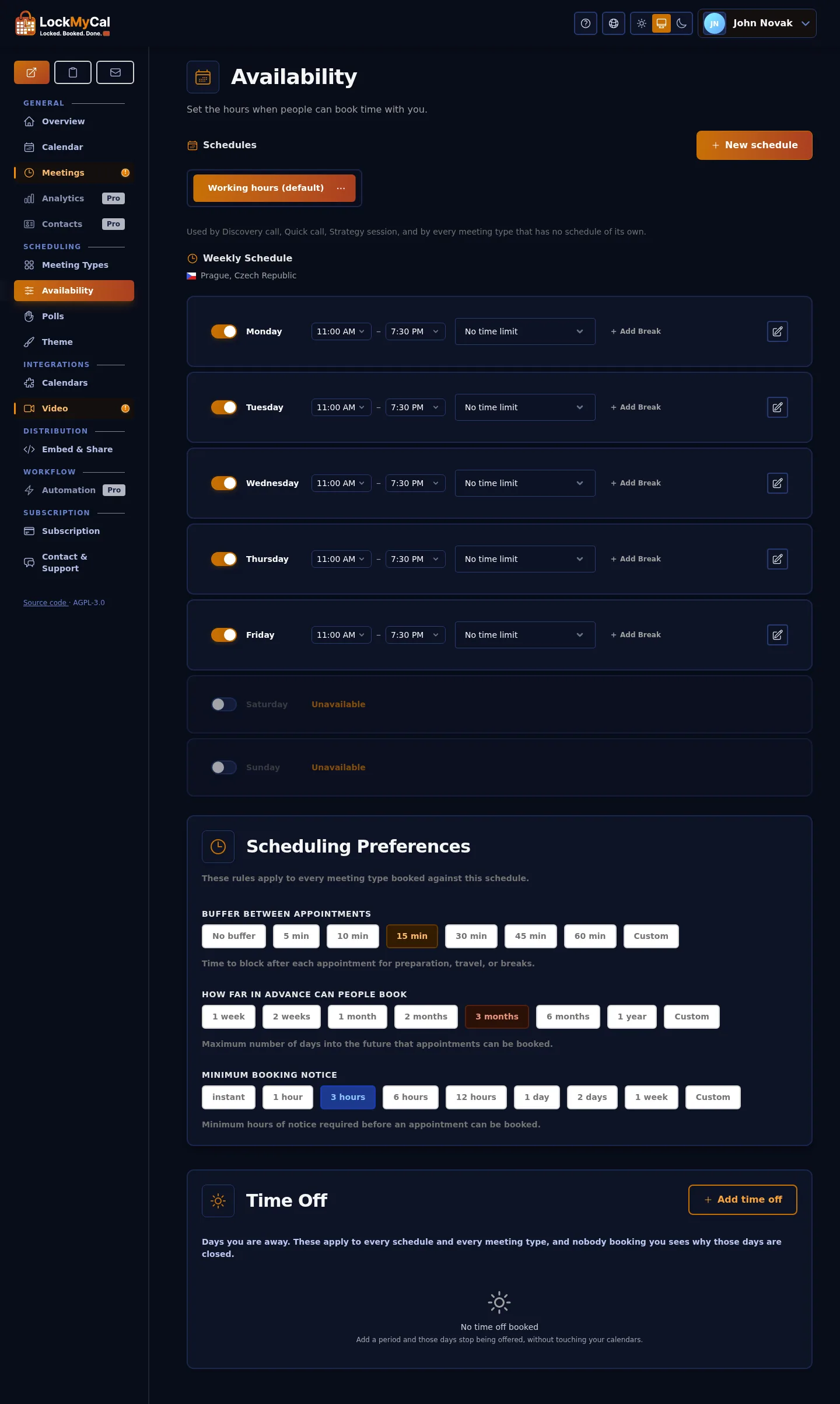
Schedule rules
Every schedule also has these rules:
- Buffer before a meeting: 0–120 minutes of free time before every meeting.
- Buffer after a meeting: 0–120 minutes of free time after every meeting. The two values are set separately for each schedule (e.g. 5 minutes to prepare and 15 to write notes).
- Minimum notice: Prevents last-minute bookings (e.g. at least 3 hours in advance).
- Booking horizon: How many days ahead clients can choose a time (e.g. 90 days).
2. Multiple Schedules
You can create several independent schedules for different purposes:
- Example 1: Regular working hours (Mon–Fri, 9:00–17:00) for standard client meetings.
- Example 2: VIP / Weekend consultations (Sat, 10:00–14:00) for specific paid services.
When editing a meeting type (Meeting Type), you simply choose which schedule the meeting should use. A meeting type without a selected schedule uses the default schedule.
3. Date Overrides
Need to adjust availability on a specific day without changing your permanent weekly schedule? For the chosen date you set:
- Unavailable: The day is closed for bookings completely.
- Custom hours: An atypical time for that day only (e.g. just
10:00 – 12:00). - Available: Opens a day that is otherwise closed by the weekly schedule.
4. Time off (holiday, illness, public holidays)
For a longer absence, add time off – a from–to period, optionally only part of a day. Days off are closed for bookings without touching your calendar, and the application warns you if the time off overlaps already existing bookings.
5. Intelligent time zone conversion (Timezones)
LockMyCal is designed for global use:
- You define your working hours in your home time zone (e.g.
Europe/Prague). - When a client visits the booking page, their local time zone is detected automatically (e.g.
America/New_York). - Free slots are converted in real time and shown in the client's local time, which completely eliminates the risk of a time shift.