Booking Management & Meeting Lifecycle
The Bookings section is the central overview of all scheduled, past and cancelled meetings with your clients.
1. Filtering and Status Overview
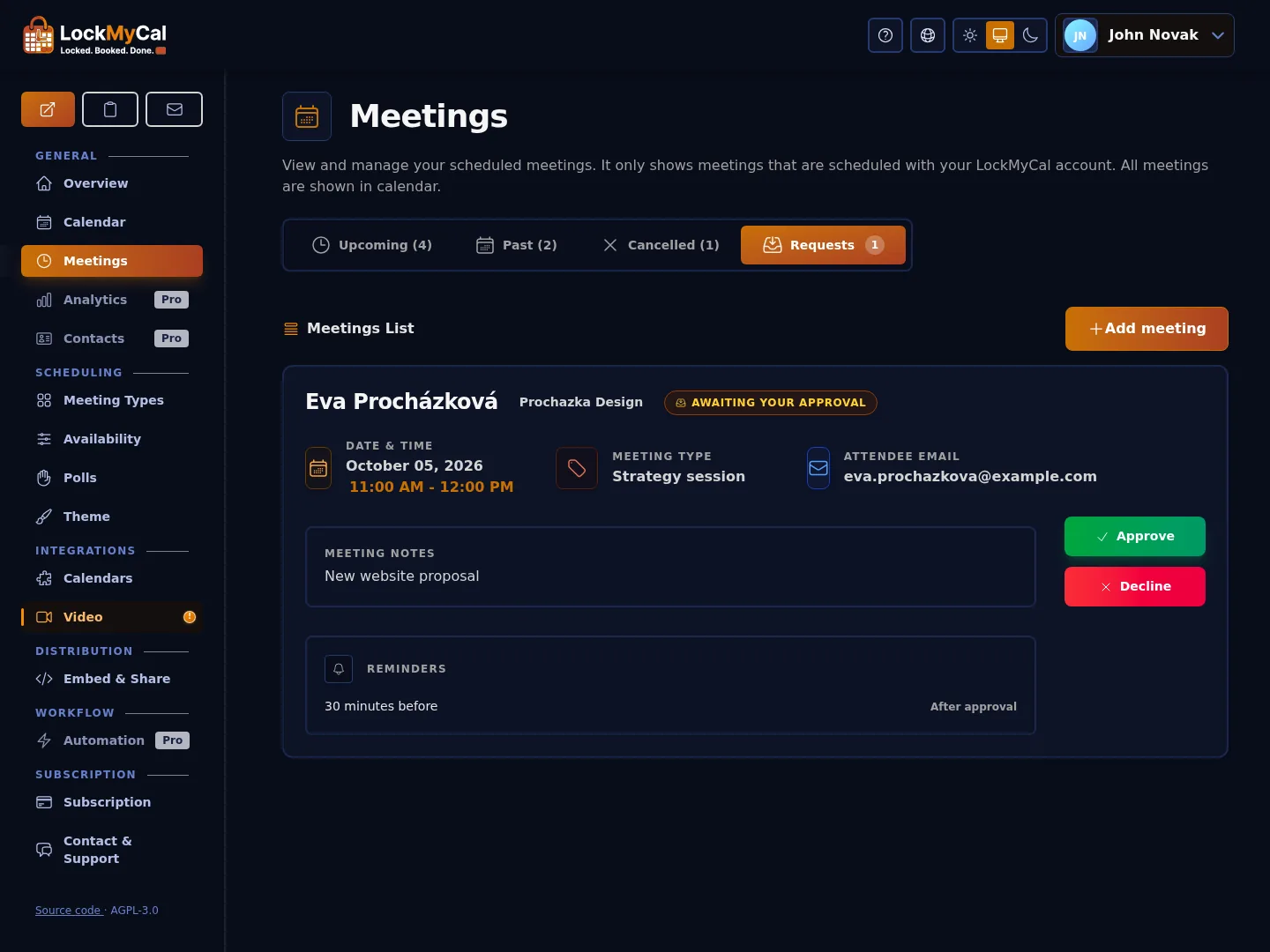
Meetings in the Meetings section are divided into tabs:
| Tab | Description |
|---|---|
| Upcoming | All future meetings in chronological order. |
| Past | The history of all meetings that took place. |
| Cancelled | Cancelled and declined appointments. By default they are deleted automatically 30 days after cancellation (profile settings). |
| Requests | Bookings awaiting your approval (for meeting types with approval switched on). |
Upcoming meetings are listed soonest first; each tab shows the number of meetings and dates are shown with the weekday.
With the Add meeting button you create a meeting manually – the attendee is sent an invitation. The quick add in the calendar on the dashboard offers the same (see Overview). The dialog supports:
- A note for the guest, which is shown in the invitation,
- More guests (optional) – each one gets an invitation by email and can accept or decline it,
- Language of the invitation – all emails about the meeting are written in it, for the guest and anyone else invited.
Without a reminder chosen, no reminder is sent for the meeting. The number of meetings created this way is limited to 20 per 10 minutes per user.
2. Booking Details
After clicking a specific meeting you have access to:
- Client contact details: Name, email, phone and local timezone.
- Guests: Other invited attendees and their response to the invitation.
- Custom answers: The full text of the answers to your additional questions.
- Video conference: A direct link to join the meeting; the organiser joins with their own link (the Join meeting button), the attendee with the attendee's link.
- Participants and seats (group meeting): The card of a group meeting shows the number of seats taken and the list of participants. Cancelling the meeting or requesting a reschedule names them; one participant's seat can be moved. Changes to a group meeting are made from the meeting, not from the calendar (it is locked there).
- Booking title: It is stored in the organiser's language; in emails to guests it is shown in their language.
- Meeting type: The meeting card on the Meetings page shows which meeting type the guest booked.
- Description and notes: The description of the meeting type and the notes the guest wrote when booking. You'll find the same details in the booking detail in the Calendar; the Manage in Meetings button takes you from it to the meeting card.
- Attachments: The files the client attached when booking (only for meeting types with attachments switched on). The meeting card shows a paperclip badge and download links, the calendar shows a paperclip on the event and the attachments in its details; the approval request page shows the file names. Only the signed-in organiser can download them. The files are deleted together with the meeting and with the account.
- Reminders: The meeting card on the Meetings page lists the reminders set for the meeting.
- Payment information: The payment status via Stripe (e.g. Awaiting payment).
Adding a guest to an existing booking
On the meeting card on the Meetings page, the Add guest button invites more people to an already existing booking. Each one gets an invitation by email and can accept or decline it. You can add at most 10 guests to one meeting; once the limit is reached, the application says that no more guests can be added.
3. Bookings on Other People's Pages
When you book a meeting on another LockMyCal user's page while signed in, it shows on your dashboard from your side:
- On the Overview it is named after the host (titled like the copy, with the host under it and the attendee's join link) and listed once, even after its copy has synced back from your calendar. Clicking it opens the copy's detail in the calendar.
- A booking still waiting is badged Awaiting host approval; only the host can approve it, so it offers no Approve or Decline.
- Its card on the Meetings page is named after the host, shows the host's email instead of your own details, joins by the attendee's link and offers only Cancel (Add guest and a reschedule request belong to the host).
The copy in your calendar and the setting for whether and where it is saved are described in Calendar Sync.
4. Rescheduling and Cancelling (Reschedule & Cancel)
Rescheduling an appointment (Reschedule)
- By the client: Every confirmation email contains a secure reschedule link. The client simply picks a new free slot without having to contact you.
- By the organizer: In the meeting details choose Reschedule and Send Reschedule Request – the client receives the request and picks a new free time themselves.
Cancelling a meeting (Cancel)
When a meeting is cancelled:
- LockMyCal frees the slot in the calendar for other interested guests.
- A cancellation email is sent to the client and the guests.
- For a paid meeting you choose a full refund, a partial amount, or cancellation without a refund – the refund goes through Stripe.
A meeting can also be permanently deleted; this action is irreversible. Only the organiser is offered the Delete button – it isn't shown for meetings you only attend.
Automatic deletion of cancelled meetings: by default, cancelled meetings are deleted automatically 30 days after cancellation. You change the time or switch the deletion off in Settings → Cancelled Meetings.
A meeting deleted from an external calendar
If the organiser removes a meeting's event from their connected calendar, the meeting shows a notice that it was deleted from the external calendar. The notice can't be dismissed and stays until you delete the meeting:
- The organiser also sees the date after which the automatic deletion of cancelled meetings will delete it.
- An attendee sees a text saying that the organiser removed this meeting's event from their calendar.